
Amazon Managed Service for Prometheus is a serverless, Prometheus-compatible monitoring service for container metrics that makes it easier to securely monitor container environments at scale.
Amazon Managed Service for Prometheus automatically scales the ingestion, storage, and querying of operational metrics as workloads scale up and down.
Amazon Managed Service for Prometheus is designed to be highly available using multiple Availability Zone (Multi-AZ) deployments. Data ingested into a workspace is replicated across three Availability Zones in the same Region.
Amazon Managed Service for Prometheus works with container clusters that run on Amazon Elastic Kubernetes Service and self-managed Kubernetes environments.
Engineering teams can use PromQL to filter, aggregate, and alarm on metrics and quickly gain performance visibility without any code changes.
Metrics ingested into a workspace are stored for 150 days by default, and are then automatically deleted.
You incur charges for ingestion and storage of metrics.
How to create Amazon Managed Service for Prometheus workspaces
A workspace is a logical space dedicated to the storage and querying of Prometheus metrics. A workspace supports fine-grained access control for authorizing its management such as update, list, describe, and delete, and the ingestion and querying of metrics.
To create a Amazon Managed Service for Prometheus workspace
- Open the Amazon Managed Service for Prometheus console at https://console.aws.amazon.com/prometheus/.
- For Workspace alias, enter an alias for the new workspace. Workspace aliases are friendly names that help you identify your workspaces. They do not have to be unique. Two workspaces could have the same alias, but all workspaces will have unique workspace IDs, which are generated by Amazon Managed Service for Prometheus.
- Choose Add new tag. Then, for Key, enter a name for the tag.
- Choose Create workspace. The workspace details page appears. This displays information including the status, ARN, workspace ID, and endpoint URLs for this workspace for both remote write and queries. Make notes of the URLs displayed for Endpoint – remote write URL and Endpoint – query URL. You’ll need them when you configure your Prometheus server to remote write metrics to this workspace and when you query those metrics.
You can edit a workspace to change its alias. To change the workspace alias using the AWS CLI, enter the following command.
aws amp update-workspace-alias --workspace-id my-workspace-id --alias "new-alias"
How to set up the ingestion of Prometheus metrics to those workspaces
One way to ingest metrics is to use a standalone Prometheus agent (a Prometheus instance running in agent mode) to scrape metrics from your cluster and forward them to Amazon Managed Service for Prometheus for storage and monitoring.
- You must have an Amazon EKS cluster where the new Prometheus server will collect metrics from.
- You must use Helm CLI 3.0 or later
- You must use a Linux or macOS computer to perform the steps in the following sections.
Step 1: Add new Helm chart repositories
helm repo add prometheus-community https://prometheus-community.github.io/helm-charts
helm repo add kube-state-metrics https://kubernetes.github.io/kube-state-metrics
helm repo update
Step 2: Create a Prometheus namespace
kubectl create namespace prometheus-agent-namespace
Step 3: Set up IAM roles for service accounts
For this method of ingestion, you need to use IAM roles for service accounts in the Amazon EKS cluster where the Prometheus agent is running.
Step 4: Set up the new server and start ingesting metrics
- my_prometheus_values_yaml
## The following is a set of default values for prometheus server helm chart which enable remoteWrite to AMP
## For the rest of prometheus helm chart values see: https://github.com/prometheus-community/helm-charts/blob/main/charts/prometheus/values.yaml
##
serviceAccounts:
  server:
    name: amp-iamproxy-ingest-service-account
    annotations:
      eks.amazonaws.com/role-arn: ${IAM_PROXY_PROMETHEUS_ROLE_ARN}
server:
  remoteWrite:
    - url: https://aps-workspaces.${REGION}.amazonaws.com/workspaces/${WORKSPACE_ID}/api/v1/remote_write
      sigv4:
        region: ${REGION}
      queue_config:
        max_samples_per_send: 1000
        max_shards: 200
        capacity: 2500
To install a new Prometheus agent and send metrics to your Amazon Managed Service for Prometheus workspace
helm install prometheus-chart-name prometheus-community/prometheus -n prometheus-agent-namespace -f my_prometheus_values_yaml
How to query those metrics from Prometheus Workspaces.
Now that metrics are being ingested to the workspace, you can query them. A common way to query your metrics is to use a service such as Grafana to query the metrics. In this section, you will learn how to use Amazon Managed Grafana to query metrics from Amazon Managed Service for Prometheus.
You perform your queries using the standard Prometheus query language, PromQL.
Ingest metrics to your Prometheus workspace
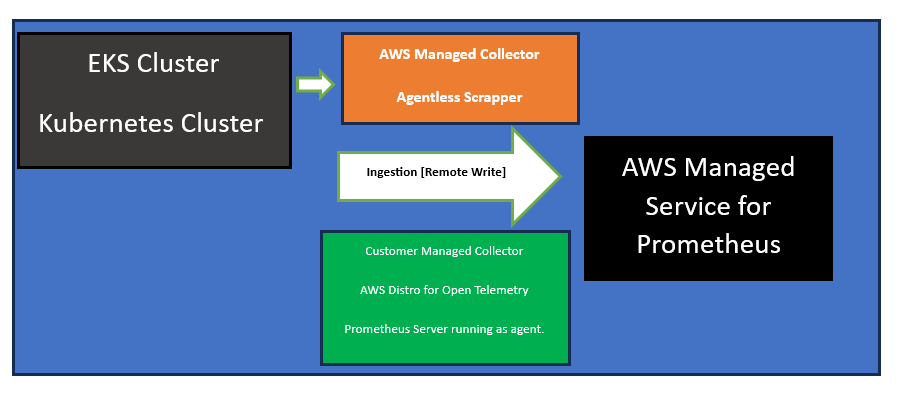
There are two methods of ingesting metrics into your Amazon Managed Service for Prometheus workspace.
- Using an AWS managed collector – Amazon Managed Service for Prometheus provides a fully-managed, agentless scraper to automatically scrape metrics from your Amazon Elastic Kubernetes Service (Amazon EKS) clusters. Scraping automatically pulls the metrics from Prometheus-compatible endpoints.
- Using a customer managed collector – You have many options for managing your own collector. Two of the most common collectors to use are installing your own instance of Prometheus, running in agent mode, or using AWS Distro for OpenTelemetry.
AWS managed collectors
A common use case for Amazon Managed Service for Prometheus is to monitor Kubernetes clusters managed by Amazon Elastic Kubernetes Service (Amazon EKS). Kubernetes clusters, and many applications that run within Amazon EKS, automatically export their metrics for Prometheus-compatible scrapers to access.
Amazon Managed Service for Prometheus provides a fully managed, agentless scraper, or collector, that automatically discovers and pulls Prometheus-compatible metrics. You don’t have to manage, install, patch, or maintain agents or scrapers. An Amazon Managed Service for Prometheus collector provides reliable, stable, highly available, automatically scaled collection of metrics for your Amazon EKS cluster.
To use an Amazon Managed Service for Prometheus collector, you must create a scraper that discovers and pulls metrics in your Amazon EKS cluster.
A scraper is automatically created for you when you create an Amazon EKS cluster through the Amazon EKS console. However, in some situations you might want to create a scraper yourself. For example, if you want to add an AWS managed collector to an existing Amazon EKS cluster
aws amp create-scraper \
  --source eksConfiguration="{clusterArn='arn:aws:eks:us-west-2:account-id:cluster/cluster-name', securityGroupIds=['sg-security-group-id'],subnetIds=['subnet-subnet-id-1', 'subnet-subnet-id-2']}" \
  --scrape-configuration configurationBlob=<base64-encoded-blob> \
  --destination ampConfiguration="{workspaceArn='arn:aws:aps:us-west-2:account-id:workspace/ws-workspace-id'}"
To scrape Prometheus metrics from your applications and infrastructure for use in Amazon Managed Service for Prometheus, they must instrument and expose Prometheus-compatible metrics from Prometheus-compatible /metrics endpoints.
Customer managed collectors
Most customer managed collectors use one of the following tools:
- AWS Distro for OpenTelemetry (ADOT) – ADOT is a fully supported, secure, production-ready open source distribution of OpenTelemetry that provides agents to collect metrics. You can use ADOT to collect metrics and send them to your Amazon Managed Service for Prometheus workspace. For more information about the ADOT Collector, see AWS Distro for OpenTelemetry.
- Prometheus agent – You can set up your own instance of the open source Prometheus server, running as an agent, to collect metrics and forward them to your Amazon Managed Service for Prometheus workspace.
Query the Metrics
Amazon Managed Service for Prometheus supports the use of Grafana version 7.3.5 and later to query metrics in a workspace.
To enable SigV4 on a standalone Grafana server on Linux, enter the following commands.
export AWS_SDK_LOAD_CONFIG=true

export GF_AUTH_SIGV4_AUTH_ENABLED=true

cd grafana_install_directory

./bin/grafana-server
Add the Prometheus data source in Grafana
The following steps explain how to set up the Prometheus data source in Grafana to query your Amazon Managed Service for Prometheus metrics.
To add the Prometheus data source in your Grafana server
- Open the Grafana console.
- Under Configurations, choose Data sources.
- Choose Add data source.
- Choose Prometheus.
- For the HTTP URL, specify the Endpoint – query URL displayed in the workspace details page in the Amazon Managed Service for Prometheus console.
- In the HTTP URL that you just specified, remove the
/api/v1/querystring that is appended to the URL, because the Prometheus data source will automatically append it.The correct URL should look similar to https://aps-workspaces.us-west-2.amazonaws.com/workspaces/ws-1234a5b6-78cd-901e-2fgh-3i45j6k178l9. - Under Auth, select the toggle for SigV4 Auth to enable it.
- You can either configure SigV4 authorization by specifying your long-term credentials directly in Grafana, or by using a default provider chain.
- To use your long-term credentials directly, do the following:

- To use a default provider chain instead (recommended for a production environment), do the following:

- Test a PromQL query against the new data source:
- Choose Explore.
- Run a sample PromQL query such as:
prometheus_tsdb_head_series
Recording rules and alerting rules
Amazon Managed Service for Prometheus supports two types of rules.
- Recording rules allow you to precompute frequently needed or computationally expensive expressions and save their results as a new set of time series.
- Alerting rules allow you to define alert conditions based on PromQL and a threshold. When the rule triggers the threshold, a notification is sent to alert manager, which forwards the notification downstream to receivers such as Amazon Simple Notification Service.
To use rules in Amazon Managed Service for Prometheus, you create one or more YAML rules files that define the rules. An Amazon Managed Service for Prometheus rules file has the same format as a rules file in standalone Prometheus.
You can have multiple rules files in a workspace. Each separate rules file is contained within a separate namespace.
Policy to give access to use rules
The following policy gives access to use rules for all resources in your account.
{
    "Version": "2012-10-17",
    "Statement": [
        {
            "Effect": "Allow",
            "Action": [
                "aps: CreateRuleGroupsNamespace",
                "aps: ListRuleGroupsNamespaces",
                "aps: DescribeRuleGroupsNamespace",
                "aps: PutRuleGroupsNamespace",
                "aps: DeleteRuleGroupsNamespace",
            ],
            "Resource": "*"
        }
    ]
}
The following is a basic example of a rules file:
groups:
  - name: test
    rules:
    - record: metric:recording_rule
      expr: avg(rate(container_cpu_usage_seconds_total[5m]))
  - name: alert-test
    rules:
    - alert: metric:alerting_rule
      expr: avg(rate(container_cpu_usage_seconds_total[5m])) > 0
      for: 2m
To use the Amazon Managed Service for Prometheus console to edit or replace your rules configuration and create the namespace
- Open the Amazon Managed Service for Prometheus console at https://console.aws.amazon.com/prometheus/.
- In the upper left corner of the page, choose the menu icon, and then choose All workspaces.
- Choose the workspace ID of the workspace, and then choose the Rules management tab.
- Choose Add namespace.
- Choose Choose file, and select the rules definition file.Alternately, you can create and edit a rules definition file directly in the Amazon Managed Service for Prometheus console by selecting Define configuration. This will create a sample default definition file that you edit before uploading.
- (Optional) To add tags to the namespace, choose Add new tag.Then, for Key, enter a name for the tag. You can add an optional value for the tag in Value.To add another tag, choose Add new tag.
- Choose Continue. Amazon Managed Service for Prometheus creates a new namespace with the same name as the rules file that you selected.
Alert Manager in Amazon Managed Service for Prometheus
When the alerting rules that Amazon Managed Service for Prometheus runs are firing, alert manager handles the alerts that are sent. It deduplicates, groups, and routes the alerts to downstream receivers. Amazon Managed Service for Prometheus supports only Amazon Simple Notification Service as a receiver, and can route messages to Amazon SNS topics in the same account.
You must give users permissions to use rules in Amazon Managed Service for Prometheus. Create an AWS Identity and Access Management (IAM) policy with the following permissions, and assign the policy to your users, groups, or roles.
{
    "Version": "2012-10-17",
    "Statement": [
        {
            "Effect": "Allow",
            "Action": [
                "aps: CreateAlertManagerDefinition",
                "aps: DescribeAlertManagerSilence",
                "aps: DescribeAlertManagerDefinition",
                "aps: PutAlertManagerDefinition",
                "aps: DeleteAlertManagerDefinition",
                "aps: ListAlerts",
                "aps: ListRules",
                "aps: ListAlertManagerReceivers",
                "aps: ListAlertManagerSilences",
                "aps: ListAlertManagerAlerts",
                "aps: ListAlertManagerAlertGroups",
                "aps: GetAlertManagerStatus",
                "aps: GetAlertManagerSilence",
                "aps: PutAlertManagerSilences",
                "aps: DeleteAlertManagerSilence",
                "aps: CreateAlertManagerAlerts"
            ],
            "Resource": "*"
        }
    ]
}
To use alert manager and templating in Amazon Managed Service for Prometheus, you create an alert manager configuration YAML file.
alertmanager_config: |
  route:
    receiver: 'default'
  receivers:
    - name: 'default'
      sns_configs:
      - topic_arn: arn:aws:sns:us-east-2:123456789012:My-Topic
        sigv4:
          region: us-east-2
        attributes:
          key: key1
          value: value1
Setting up your alert receiver
- Creating a new Amazon SNS topic
- Giving Amazon Managed Service for Prometheus permission to send messages to your Amazon SNS topic
- Specifying your Amazon SNS topic in the alert manager configuration file
- Configuring alert manager to output JSON to Amazon SNS
- Sending from Amazon SNS to other destinations
- SNS receiver message validation and truncation rules
Creating a new Amazon SNS topic
To Create the new AWS SNS topic
- Open the Amazon SNS console at https://console.aws.amazon.com/sns/v3/home.
- In the navigation pane, choose Topics.
- Choose the name of the topic that you are using with Amazon Managed Service for Prometheus.
- Choose Edit.
To give Amazon Managed Service for Prometheus permission to send messages to your Amazon SNS topic
- Further in SNS console, choose Access policy and add the following policy statement to the existing policy.
{
    "Sid": "Allow_Publish_Alarms",
    "Effect": "Allow",
    "Principal": {
        "Service": "aps.amazonaws.com"
    },
    "Action": [
        "sns:Publish",
        "sns:GetTopicAttributes"
    ],
    "Condition": {
        "ArnEquals": {
            "aws:SourceArn": "workspace_ARN"
        },
        "StringEquals": {
            "AWS:SourceAccount": "account_id"
        }
    },
    "Resource": "arn:aws:sns:region:account_id:topic_name"
}
- If your SNS topic is service side encryption (SSE) enabled, you need to add the following permissions to your KMS key policy in the
"Action"block.
kms:GenerateDatakey
kms:Decrypt
Specifying your Amazon SNS topic in the alert manager configuration file
- name: name_of_receiver
  sns_configs:
    - sigv4:
        region: region
      topic_arn: ARN_of_SNS_topic
      subject: somesubject
      attributes:
        key: somekey
        value: somevalue
CloudWatch metrics to monitor Amazon Managed Service for Prometheus.
These metrics provide visibility about your workspace utilization. The vended metrics can be found in the AWS/Usage and AWS/Prometheus namespaces in CloudWatch.
CloudWatch Logs to query and view Amazon Managed Service for Prometheus alert manager and ruler events.
Amazon Managed Service for Prometheus logs Alert Manager and Ruler error and warning events in log groups in Amazon CloudWatch Logs. Attach the following policy or equivalent permissions to the ID or role you will use to configure CloudWatch Logs.
{
    "Version": "2012-10-17",
    "Statement": [
        {
            "Effect": "Allow",
            "Action": [
                "logs:CreateLogDelivery",
                "logs:GetLogDelivery",
                "logs:UpdateLogDelivery",
                "logs:DeleteLogDelivery",
                "logs:ListLogDeliveries",
                "logs:PutResourcePolicy",
                "logs:DescribeResourcePolicies",
                "logs:DescribeLogGroups",
                "aps:CreateLoggingConfiguration",
                "aps:UpdateLoggingConfiguration",
                "aps:DescribeLoggingConfiguration",
                "aps:DeleteLoggingConfiguration"
            ],
            "Resource": "*"
        }
    ]
}
Encryption at rest for Amazon Managed Service for Prometheus
By default, Amazon Managed Service for Prometheus automatically provides you with encryption at rest and does this using AWS owned encryption keys.
Amazon Managed Service for Prometheus uses grants in AWS KMS
Amazon Managed Service for Prometheus requires the grants to use your customer managed key for the following internal operations:
- Send DescribeKey requests to AWS KMS to verify that the symmetric customer managed KMS key given when creating a workspace is valid.
- Send GenerateDataKey requests to AWS KMS to generate data keys encrypted by your customer managed key.
- Send Decrypt requests to AWS KMS to decrypt the encrypted data keys so that they can be used to encrypt your data.
Amazon Managed Service for Prometheus automatically enables encryption at rest using AWS owned keys to protect your data at no charge. However, AWS KMS charges apply for using a customer managed key. When you create a workspace, you can specify the customer managed key by entering a KMS Key ARN, which Amazon Managed Service for Prometheus uses to encrypt the data stored by the workspace.
To use your customer managed key with your Amazon Managed Service for Prometheus workspaces, To use your customer managed key with your Amazon Managed Service for Prometheus workspaces, the following API operations must be permitted in the key policy:
kms:CreateGrant– Adds a grant to a customer managed key. Grants control access to a specified KMS key, which allows access to grant operations Amazon Managed Service for Prometheus requires. This allows Amazon Managed Service for Prometheus to do the following:- Call
GenerateDataKeyto generate an encrypted data key and store it, because the data key isn’t immediately used to encrypt. - Call
Decryptto use the stored encrypted data key to access encrypted data.
- Call
kms:DescribeKey– Provides the customer managed key details to allow Amazon Managed Service for Prometheus to validate the key.
  "Statement" : [
    {
      "Sid" : "Allow access to Amazon Managed Service for Prometheus principal within your account",
      "Effect" : "Allow",
      "Principal" : {
        "AWS" : "*"
      },
      "Action" : [
        "kms:DescribeKey",
        "kms:CreateGrant",
        "kms:GenerateDataKey",
        "kms:Decrypt"
      ],
      "Resource" : "*",
      "Condition" : {
        "StringEquals" : {
          "kms:ViaService" : "aps.region.amazonaws.com",
          "kms:CallerAccount" : "111122223333"
        }
    },
    {
      "Sid": "Allow access for key administrators - not required for Amazon Managed Service for Prometheus",
      "Effect": "Allow",
      "Principal": {
        "AWS": "arn:aws:iam::111122223333:root"
       },
      "Action" : [
        "kms:*"
       ],
      "Resource": "arn:aws:kms:region:111122223333:key/key_ID"
    },
    <other statements needed for other non-Amazon Managed Service for Prometheus scenarios>
  ]
AmazonPrometheusFullAccess
This policy includes the following permissions.
aps– Allows full access to Amazon Managed Service for Prometheuseks– Allows the Amazon Managed Service for Prometheus service to read information about your Amazon EKS clusters. This is required to allow creating managed scrapers and discover metrics in your cluster.ec2– Allows the Amazon Managed Service for Prometheus service to read information about your Amazon EC2 networks. This is required to allow creating managed scrapers with access to your Amazon EKS metrics.iam– Allows principals to create a service-linked role for managed metric scrapers.
{
	"Version": "2012-10-17",
	"Statement": [
		{
			"Sid": "AllPrometheusActions",
			"Effect": "Allow",
			"Action": [
				"aps:*"
			],
			"Resource": "*"
		},
		{
			"Sid": "DescribeCluster",
			"Effect": "Allow",
			"Action": [
				"eks:DescribeCluster",
				"ec2:DescribeSubnets",
				"ec2:DescribeSecurityGroups"
			],
			"Condition": {
				"ForAnyValue:StringEquals": {
					"aws:CalledVia": [
						"aps.amazonaws.com"
					]
				}
			},
			"Resource": "*"
		},
		{
			"Sid": "CreateServiceLinkedRole",
			"Effect": "Allow",
			"Action": "iam:CreateServiceLinkedRole",
			"Resource": "arn:aws:iam::*:role/aws-service-role/scraper.aps.amazonaws.com/AWSServiceRoleForAmazonPrometheusScraper*",
			"Condition": {
				"StringEquals": {
					"iam:AWSServiceName": "scraper.aps.amazonaws.com"
				}
			}
		}
	]
}
AmazonPrometheusRemoteWriteAccess
The contents of AmazonPrometheusRemoteWriteAccess are as follows:
{
    "Version": "2012-10-17",
    "Statement": [
        {
            "Action": [
                "aps:RemoteWrite"
            ],
            "Effect": "Allow",
            "Resource": "*"
        }
    ]
}
 Automate Infra