
As your infrastrure grows it is important to monitor your infrastrure and creates alarms and notifications so that the performance of infrastrure is always maintained.
In this tutorial you will learn everything about one of the most important service which is critical for monitoring that is AWS SNS.
Lets get started.
What is SNS amazon or Amazon SNS or AWS SNS?
Amazon Simple Notification Service (Amazon SNS) is a managed service that provides message delivery from producers to consumers.
Publishers send the message to the topic and later clients can subscribe to the messages using an endpoint such as Amazon kinesis data firehose, Amazon SQS, AWS Lambda, HTTP, mobile push notifications, and mobile text messages (SMS).
Some of the Key features of AWS SNS are following:
- SNS supports application-to-application messaging such as Amazon Kinesis Data Firehose delivery streams, Lambda functions, Amazon SQS queues, HTTP/S endpoints, and AWS Event Fork Pipelines can subscribe to SNS topics.
- SNS supports application-to-person notifications provide user notifications to subscribers such as mobile applications, mobile phone numbers, and email addresses.
- Use a FIFO topic to ensure strict message ordering and avoid reduplication.

- For Message durability public messages across multiple servers and data centers. If subscriber endpoint is not available then run delivery retry policy and to preserve any messages that are not delivered then create dead letter queue.
- You can subscribe an AWS Lambda function to SNS Topic.
- You can use AWS IAM to control who can access the AWS SNS Topic or who can create SNS Topic or who can publish to SNS topic.
- You can access AWS SNS Topic using AWS CLI, AWS console and AWS SDK.
- To encrypt the content of messages stored in AWS SNS topics use AWS KMS keys.
- You can use Amazon SNS FIFO (first in, first out) topics and Amazon Simple Queue Service (Amazon SQS) FIFO queues together to provide strict message ordering and message deduplication
- By default, an Amazon SNS topic subscriber receives every message that’s published to the topic. To receive only a subset of the messages, a subscriber must assign a filter policy to the topic subscription. A filter policy is a JSON object containing properties that define which messages the subscriber receives. The policy that rejects the example message.
- SNS access policies are similar to AWS S3 policies which are useful for cross account access to SNS topics and for allowing other services to write to an SNS topic.
Lets say that we have below message which looks like below.
{
   "Type": "Notification",
   "MessageId": "a1b2c34d-567e-8f90-g1h2-i345j67klmn8",
   "TopicArn": "arn:aws:sns:us-east-2:123456789012:MyTopic",
   "Message": "message-body-with-transaction-details",
   "Timestamp": "2019-11-03T23:28:01.631Z",
   "SignatureVersion": "4",
   "Signature": "signature",
   "UnsubscribeURL": "unsubscribe-url",
   "MessageAttributes": {
      "customer_interests": {
         "Type": "String.Array",
         "Value": "[\"soccer\", \"rugby\", \"hockey\"]"
      },
      "store": {
         "Type": "String",
         "Value":"example_corp"
      },
      "event": {
         "Type": "String",
         "Value": "order_placed"
      },
      "price_usd": {
         "Type": "Number",
         "Value": "210.75"
      }
   }
}
Now because the encrypted property name isn’t present in the message attributes, this policy property causes the message to be rejected regardless of the value assigned to it.
{
   "store": ["example_corp"],
   "event": ["order_cancelled"],
   "encrypted": [false],
   "customer_interests": [
      "basketball",
      "baseball"
   ]
}
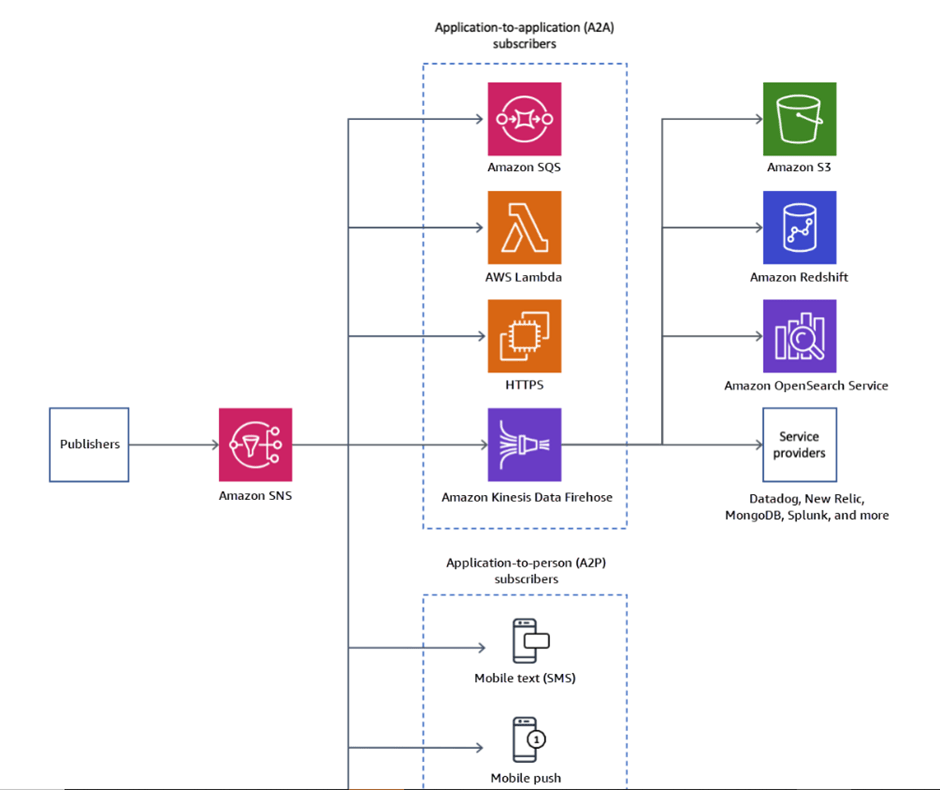
Amazon SNS application integration
Application that publishes a message to an SNS topic whenever an order is placed for a product. Then, SQS queues that are subscribed to the SNS topic receive identical notifications for the new order. An Amazon Elastic Compute Cloud (Amazon EC2) server instance attached to one of the SQS queues can handle the processing or fulfilment of the order.
For Example:

- You can use SNS with AWS Athena as well to receive notifications when control limits are exceeded.
- You can use SNS with AWS Data pipeline to receive notifications about the status of pipeline.
- You can use SNS with AWS Redshift to Receive notifications of Amazon Redshift events.
AWS SNS Event Source
You can configure AWS SNS services as event source which means the SNS service receives notifications from below services as follows:
- Athena
- When the control limits of Athena are exceeded then the Athena sends the notifications to AWS SNS.
- If the aggregate amount of data scanned exceeds the threshold, you can push a notification to an Amazon SNS topic
- Data pipeline
- Sends an Amazon SNS notification message when an activity fails or finishes successfully.
- Redshift for Analytical services.
- The parameter group [parameter group name] was updated at [time].
- The customer subnets [subnet name] you specified for Amazon VPC [VPC name] do not exist or are invalid.
- Event Bridge, Step functions for application integrations.
- Billing and cost management
- Elastic beanstalk, AWS Lambda and LightSail can send the events and SNS can be used as notification center.
- Receive notifications of Amazon Redshift event and Receive notifications of Amazon RDS events.
AWS SNS Event Destination
You can configure AWS services as event destination which means the SNS topics notifications are send to below destinations as follows:
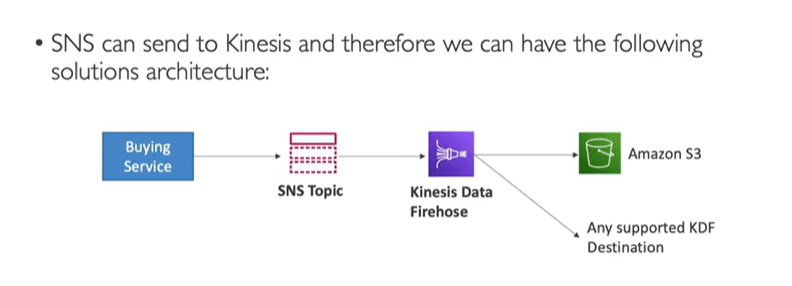
- Amazon Kinesis Data firehose: Deliver events to delivery streams for archiving and analysis purposes. Further you can deliver it to AWS destinations such as AWS S3, Amazon Redshift, Amazon OpenSearch
- AWS Lambda: Deliver events to functions for triggering the execution of custom business logic
- AWS SQS: Deliver events to queues for application integration purposes
- HTTP Endpoints: Deliver events to external webbooks.
- SMS: Deliver events to mobile phones as text messages.
- Email: Deliver events to inboxes as email messages.
- Platform endpoint: Deliver events to mobile phones as native push notifications.
AWS SNS pricing
- Amazon SNS has no upfront costs. You pay based on the number of messages that you publish, the number of notifications that you deliver, and any additional API calls for managing topics and subscriptions
Creating Amazon SNS Topic
In this section we will go through step by step on how to create a AWS SNS Topic.

- Sign in to the Amazon SNS console.
- In the left navigation pane, choose Topics.

- On the Topics page, choose Create topic.
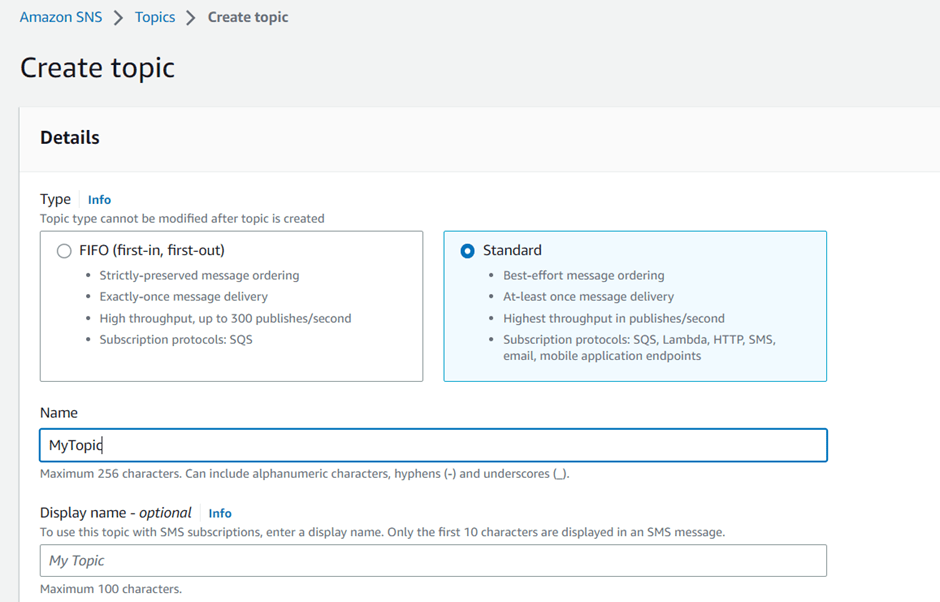
- Choose Standard.
- In the Details section, enter a Name for the topic, such as
MyTopic. - Next click on Create topic.
- Expand the Encryption section and do the following.
- Choose Enable encryption and Specify the AWS KMS key. If you aren’t the owner of the KMS, or if you log in with an account that doesn’t have the
kms:ListAliasesandkms:DescribeKeypermissions, you won’t be able to view information about the KMS on the Amazon SNS console. - The AWS managed KMS for Amazon SNS (Default) alias/aws/sns is selected by default.
- The first time you use the AWS Management Console to specify the AWS managed KMS for Amazon SNS for a topic, AWS KMS creates the AWS managed KMS for Amazon SNS.

Create a subscription to the SNS topic
- In the left navigation pane, choose Subscriptions.
- On the Subscriptions page, choose Create subscription.

- On the Create subscription page, choose the Topic ARN field to see a list of the topics in your AWS account.
- Choose the topic that you created in the previous step.
- For Protocol, choose Email.
- For Endpoint, enter an email address that can receive notifications.
- Choose Create subscription.
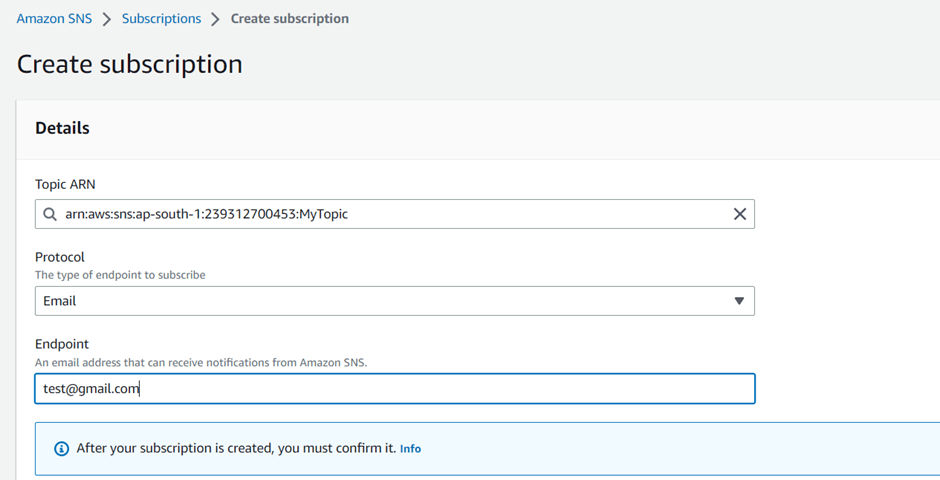


The console opens the new subscription’s Details page.
- Check your email inbox and choose Confirm subscription in the email from AWS Notifications. The sender ID is usually “no-reply@sns.amazonaws.com”.
- Amazon SNS opens your web browser and displays a subscription confirmation with your subscription ID.
Publishing a Message
- Publishing In the left navigation pane, choose Topics.
- On the Topics page, choose the topic that you created earlier, and then choose Publish message.
The console opens the Publish message to topic page.
- (Optional) In the Message details section, enter a Subject, such as:
Hello from Amazon SNS!
- In the Message body section, choose Identical payload for all delivery protocols, and then enter a message body, such as:
Publishing a message to an SNS topic.
- Choose Publish message.
The message is published to the topic, and the console opens the topic’s Details page.
- Check your email inbox and verify that you received an email from Amazon SNS with the published message.
You can use Amazon SNS FIFO (first in, first out) topics and Amazon Simple Queue Service (Amazon SQS) FIFO queues together to provide strict message ordering and message deduplication
By default, an Amazon SNS topic subscriber receives every message that’s published to the topic. To receive only a subset of the messages, a subscriber must assign a filter policy to the topic subscription.
Tagging SNS Topics
Amazon SNS supports tagging of Amazon SNS topics. This can help you track and manage the costs associated with your topics, provide enhanced security in your AWS Identity and Access Management (IAM) policies, and lets you easily search or filter through thousands of topics
In the example below, the policy restricts the ability to publish messages to topics tagged with production, while allowing messages to be published to topics tagged with development.
Also, AWS Identity and Access Management supports controlling access to resources based on tags.
{
  "Version": "2012-10-17",
  "Statement": [{
    "Effect": "Deny",
    "Action": [
	"sns:Publish"
    ],
    "Resource": "arn:aws:sns:*:*:*",
    "Condition": {
      "StringEquals": {
        "aws:ResourceTag/environment": "production"
      }
    }
  },
  {
    "Effect": "Allow",
    "Action": [
      "sns:Publish"
    ],
    "Resource": "arn:aws:sns:*:*:*",
    "Condition": {
      "StringEquals": {
        "aws:ResourceTag/environment": "development"
      }
    }
  }]
}
AWS SNS Message Ordering and deduplications (FIFO topics)
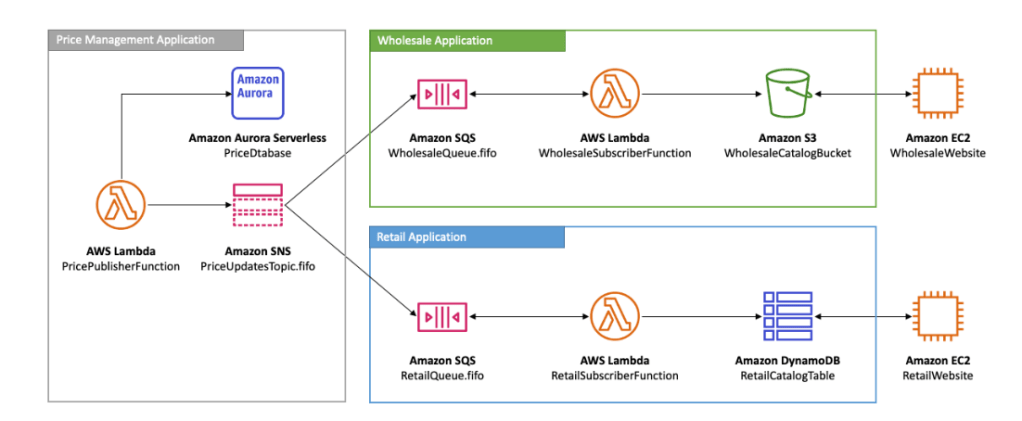
In the below diagram, Lambda function is invoked when there is any change in price of any application and publishes price update to Amazon FIFO topics. Further wholesale application uses AWS SWS SQS FIFO which subscribes AWS SNS FIFO topics to get updates of price and further run Lambda using AWS S3 and publishes on AWS EC2 website.
Similarly, retail application uses AWS SWS SQS FIFO which subscribes AWS SNS FIFO topics to get updates of price and further run Lambda using AWS DynamoDB and publishes on AWS EC2 website.
AWS SNS Message Publishing
- You can publish a message on SNS topic using the AWS Management console.
- You can publish a message on SNS topic using the AWS SDK.
- To publish large Amazon SNS messages, you can use the Amazon SNS Extended Client Library for Java, or the Amazon SNS Extended Client Library for Python. Using these libraries you can send messages that are larger than the current maximum of 256 KB, with a maximum of 2 GB.
Both libraries save the actual payload to an Amazon S3 bucket, and publish the reference of the stored Amazon S3 object to the Amazon SNS topic. Further AWS SQS use the Amazon SQS Extended Client Library for Java to de-reference and retrieve payloads from Amazon S3.
Working with Amazon SNS Extended Client Library for Python
Before we start working with Amazon SNS Extended Client Library for Python we need:
- An AWS SDK.
- An AWS account with the proper credentials.
- Python 3.x (or later) and pip.
- The Amazon SNS Extended Client Library for Python
The below attributes are available on Boto3 Amazon SNS Client that let you provide structured metadata items about the message.
- large_payload_support – The Amazon S3 bucket name to store large messages.
- message_size_threshold – The threshold for storing the message in the large messages bucket.
- always_through_s3 – If
True, then all messages are stored in Amazon S3. The default isFalse. - s3 – The Boto3 Amazon S3 resource object used to store objects in Amazon S3.
Publishing messages to Amazon SNS with the payload stored in Amazon S3 using below steps.
- Create a sample Amazon SNS topic and Amazon SQS queue.
- Subscribe the queue to receive messages from the topic.
- Publish a test message.
- The message payload is stored in Amazon S3 using the Amazon SNS Extended Client Library for Python, and the reference to it is published to AWS SQS .
- Print the published message from the AWS SQS queue along with the original message retrieved from Amazon S3 using Amazon SQS Extended Client Library for Python.
AWS SNS Message Batching
An alternative to publishing messages to either Standard or FIFO topics in individual Publish API requests, is using the Amazon SNS PublishBatch API to publish up to 10 messages in a single API request
Amazon SNS raw message delivery
AWS SNS allows to send the raw message delivery to Amazon Kinesis Data firehose, Amazon SQS and HTTP/S.
- When message is sent to Firehose or Amazon SQS then AWS SNS metadata is stripped from the published message and the message is sent as is.
- When you enable raw message delivery for HTTP/S endpoints, the HTTP header
x-amz-sns-rawdeliverywith its value set totrueis added to the message, indicating that the message has been published without JSON formatting.
Raw message delivery is disabled
{ "Type": "Notification", "MessageId": "dc1e94d9-56c5-5e96-808d-cc7f68faa162", "TopicArn": "arn:aws:sns:us-east-2:111122223333:ExampleTopic1", "Subject": "TestSubject", "Message": "This is a test message.", "Timestamp": "2021-02-16T21:41:19.978Z", "SignatureVersion": "1", "Signature": "FMG5tlZhJNHLHUXvZgtZzlk24FzVa7oX0T4P03neeXw8ZEXZx6z35j2FOTuNYShn2h0bKNC/zLTnMyIxEzmi2X1shOBWsJHkrW2xkR58ABZF+4uWHEE73yDVR4SyYAikP9jstZzDRm+bcVs8+T0yaLiEGLrIIIL4esi1llhIkgErCuy5btPcWXBdio2fpCRD5x9oR6gmE/rd5O7lX1c1uvnv4r1Lkk4pqP2/iUfxFZva1xLSRvgyfm6D9hNklVyPfy+7TalMD0lzmJuOrExtnSIbZew3foxgx8GT+lbZkLd0ZdtdRJlIyPRP44eyq78sU0Eo/LsDr0Iak4ZDpg8dXg==", "SigningCertURL": "https://sns.us-east-2.amazonaws.com/SimpleNotificationService-010a507c1833636cd94bdb98bd93083a.pem", "UnsubscribeURL": "https://sns.us-east-2.amazonaws.com/?Action=Unsubscribe&SubscriptionArn=arn:aws:sns:us-east-2:111122223333:ExampleTopic1:e1039402-24e7-40a3-a0d4-797da162b297" }Raw message delivery is enabled
This is a test message.
Subscribing Amazon Kinesis Data Firehose delivery streams to SNS topics
Amazon SNS is integrated with lot of AWS services and applications such as AWS Lambda and Firehose delivery streams. A subscription owner can subscribe up to five Kinesis Data Firehose delivery streams to an SNS topic.
Below are the steps which are performed:

Messages published to an SNS topic are sent to the subscribed Kinesis Data Firehose delivery stream, and delivered to the destination as configured in Kinesis Data Firehose.
- Make sure you have SNS Topic already created.
- Make sure you have Kinesis Data firehose delivery stream.
- AWS IAM role which trusts SNS service principal and has permissions to write to the delivery stream.
{
  "Version": "2012-10-17",
  "Statement": [
    {
      "Effect": "Allow",
      "Principal": {
        "Service": "sns.amazonaws.com"
      },
      "Action": "sts:AssumeRole"
    }
  ]
}
IAM Policy should be as below.
{
  "Version": "2012-10-17",
  "Statement": [
    {
      "Action": [
        "firehose:DescribeDeliveryStream",
        "firehose:ListDeliveryStreams",
        "firehose:ListTagsForDeliveryStream",
        "firehose:PutRecord",
        "firehose:PutRecordBatch"
      ],
      "Resource": [
        "arn:aws:firehose:us-east-1:111111111111:deliverystream/firehose-sns-delivery-stream"
      ],
      "Effect": "Allow"
    }
  ]
}
Note: To provide full permission for using Kinesis Data Firehose, you can also use the AWS managed policy AmazonKinesisFirehoseFullAccess.
- Subscribe a Kinesis Data Firehose delivery stream to a topic from the the Amazon SNS console by choosing choose Create subscription.
- Sign in to the Amazon SNS console.
- In the navigation pane, choose Subscriptions.
- On the Subscriptions page, choose Create subscription.
- On the Create subscription page, in the Details section, do the following:
- For Topic ARN, choose the Amazon Resource Name (ARN) of a standard topic.
- For Protocol, choose Kinesis Data Firehose.
- For Endpoint, choose the ARN of a Kinesis Data Firehose delivery stream that can receive notifications from Amazon SNS.
- For Subscription role ARN, specify the ARN of the AWS Identity and Access Management (IAM) role that you created for writing to Kinesis Data Firehose delivery streams
Sending Amazon SNS messages to an Amazon SQS queue in a different account
- You can publish a notification to AWS SNS topic to subscribers such as AWS SQS queues in another account. The topic and queue creation is almost same except that how you handle subscription confirmation and how you subscribe queue to topic.
- The account that created the Amazon SQS queue is the queue owner. When the queue owner creates a subscription, the subscription doesn’t require confirmation. The queue begins to receive notifications from the topic as soon as the Subscribe action completes.
- While creating the topic the policy should be as below. This policy gives account
111122223333permission to callsns:SubscribeonMyTopicin account123456789012.

Create the AWS SNS Topic and attach the Policy as below.
{
   "Statement": [
      {
         "Effect": "Allow",
         "Principal": {
            "AWS": "111122223333"
         },
         "Action": "sns:Subscribe",
         "Resource": "arn:aws:sns:us-east-2:123456789012:MyTopic"
      }
   ]
}
- Next, add an Amazon SQS queue subscription to a topic in another AWS account using the AWS Management Console.
- Note: Any user who creates a subscription but isn’t the owner of the queue must confirm the subscription.

Configure Delivery Status Logging using AWS Management console.
- Sign in to the Amazon SNS console.
- On the navigation panel, choose Topics.
- On the Topics page, choose a topic and then choose Edit.
- On the Edit
MyTopicpage, expand the Delivery status logging section. - Choose the protocol for which you want to log delivery status; for example AWS Lambda.
- Enter the Success sample rate (the percentage of successful messages for which you want to receive CloudWatch Logs.
- In the IAM roles section, do one of the following:
- To choose an existing service role from your account, choose Use existing service role and then specify IAM roles for successful and failed deliveries.
- To create a new service role in your account, choose Create new service role, choose Create new roles to define the IAM roles for successful and failed deliveries in the IAM console.To give Amazon SNS write access to use CloudWatch Logs on your behalf, choose Allow.
- Choose Save changes.
AWS SNS Security
- Message data protection is a new major feature of Amazon SNS.
- Use MDP to scan message for confidential or sensitive information
- Provide message auditing to all content flowing through the topic
- Provide content access controls to messages published to the topic and messages delivered by the topic
AWS SNS Encryption
Data in Transit
- Data while in transit is when data is travelled from and to AWS SNS. You can protect data in transit using Secure Sockets Layer (SSL) or client-side encryption.
- Use SSL/TLS to communicate with AWS resources. We recommend TLS 1.2 or later.
Data at REST
Encryption at rest is when data is stored on disks in Amazon SNS data centers. You can protect data at rest by requesting Amazon SNS to encrypt your messages before saving them to disk in its data centers and then decrypt them when the messages are received.
- Server side encryption ( SSE ) lets you store sensitive data in encrypted topics by using AWS KMS Keys.
- SSE encrypts the body of a message in an Amazon SNS topic.
Example of KMS policy that allows a user to send a message to a topic with SSE.
{
  "Statement": [{
    "Effect": "Allow",
    "Action": [
      "kms:GenerateDataKey",
      "kms:Decrypt"
    ],
    "Resource": "arn:aws:kms:us-east-2:123456789012:key/1234abcd-12ab-34cd-56ef-1234567890ab"
  }, {
    "Effect": "Allow",
    "Action": [
      "sns:Publish"
    ],
    "Resource": "arn:aws:sns:*:123456789012:MyTopic"
  }]
}
- To enable server-side encryption (SSE) for an Amazon SNS topic using the AWS Management Console.
- Sign in to the Amazon SNS console. On the navigation panel, choose Topics and the Encryption section and choose Enable encryption and specify the AWS KMS Key .
Enabling (SSE) for an Amazon SNS topic with an encrypted Amazon SQS queue subscribed
Below are the steps that one must do to ensure the SNS messages are encrypted and sent to encrypted SQS queues.
- Create a custom CMK with below key policy.
{
    "Sid": "Allow Amazon SNS to use this key",
    "Effect": "Allow",
    "Principal": {
        "Service": "sns.amazonaws.com"
    },
    "Action": [
        "kms:Decrypt",
        "kms:GenerateDataKey*"
    ],
    "Resource": "*"
}
- Create a encrypted SNS topics using CMK from the SNS console and expand encryption and apply CMK key.
- Create and subscribe encrypted Amazon SQS Queues using CMK use SQS management console. choose Queue Actions, Subscribe Queues to SNS Topic.
- To publish a message to your encrypted topic, use SNS topic management console.
- To publish a message to your encrypted topic
- verify message delivery in SQS Management console using On the Send and receive messages in MyEncryptedQueue1 page, choose Poll for messages.
Connecting AWS SNS topic with SQS ( as Subscriber)
To enable an Amazon SNS topic to send messages to an Amazon SQS queue, do one of the following:
- Get the Amazon Resource Name (ARN) of the queue you want to send messages to and the topic to which you want to subscribe the queue.
- Give sqs:SendMessage permission to the Amazon SNS topic so that it can send messages to the queue. This will be done on the AWS SQS console.
- Subscribe the queue to the Amazon SNS topic.
- Give IAM users or AWS accounts the appropriate permissions to publish to the Amazon SNS topic and read messages from the Amazon SQS queue. There are two ways to control access to a topic or queue.
- Add a policy to an IAM user or group.
{
  "Statement": [
    {
      "Effect": "Allow",
      "Action": "sns:Publish",
      "Resource": "arn:aws:sns:us-east-2:123456789012:MyTopic"
    }
  ]
}
{
  "Statement": [
    {
      "Effect": "Allow",
      "Action": [
        "sqs:ReceiveMessage",
        "sqs:DeleteMessage"
      ],
      "Resource": [
        "arn:aws:sqs:us-east-2:123456789012:MyQueue1",
        "arn:aws:sqs:us-east-2:123456789012:MyQueue2"
      ]
    }
  ]
}
- Add a policy to topic or queue. If you want to give permissions to a topic or queue to another AWS account, the only way you can do that is by adding a policy that has as its principal the AWS account you want to give permissions to.
- Test it out by publishing a message to the topic and reading the message from the queue by polling in SQS console.
Connecting AWS SNS topic with SQS ( as Subscriber) and Kinesis Firehose and storing in AWS S3

In this section we will push the message to AWS SNS topic which is subscribed by AWS SQS and Amazon Kinesis Firehose and further sends these messages to AWS S3. Lets focus on what we need and how to accomplish this.
- Create the Amazon S3 bucket:
- Create the two Amazon SQS queues named ticketPaymentQueue and ticketFraudQueue with the following access policy.
{
  "Version": "2008-10-17",
  "Statement": [
    {
      "Effect": "Allow",
      "Principal": {
        "Service": "sns.amazonaws.com"
      },
      "Action": "sqs:SendMessage",
      "Resource": "*",
      "Condition": {
        "ArnEquals": {
          "aws:SourceArn": "arn:aws:sns:us-east-1:123456789012:ticketTopic"
        }
      }
    }
  ]
}
- Create the SNS topic named ticketTopic
- Subscribe both SQS queues to the SNS topic in the SNS Topic console by Create subscription.
- Create the Kinesis Data Firehose delivery stream and Choose a destination as Amazon S3.
- Next Subscribe the Kinesis Data Firehose delivery stream to the Amazon SNS topic.
- AWS IAM role which trusts SNS service principal and has permissions to write to the delivery stream.
- IAM Policy should be as below.
{
  "Version": "2012-10-17",
  "Statement": [
    {
      "Action": [
        "firehose:DescribeDeliveryStream",
        "firehose:ListDeliveryStreams",
        "firehose:ListTagsForDeliveryStream",
        "firehose:PutRecord",
        "firehose:PutRecordBatch"
      ],
      "Resource": [
        "arn:aws:firehose:us-east-1:111111111111:deliverystream/firehose-sns-delivery-stream"
      ],
      "Effect": "Allow"
    }
  ]
}
- Note: To provide full permission for using Kinesis Data Firehose, you can also use the AWS managed policy
AmazonKinesisFirehoseFullAccess. - Subscribe a Kinesis Data Firehose delivery stream to a topic from the the Amazon SNS console by choosing choose Create subscription.
- Sign in to the Amazon SNS console.
- In the navigation pane, choose Subscriptions.
- On the Subscriptions page, choose Create subscription.
- On the Create subscription page, in the Details section, do the following:
- For Topic ARN, choose the Amazon Resource Name (ARN) of a standard topic.
- For Protocol, choose Kinesis Data Firehose.
- For Endpoint, choose the ARN of a Kinesis Data Firehose delivery stream that can receive notifications from Amazon SNS.
- For Subscription role ARN, specify the ARN of the AWS Identity and Access Management (IAM) role that you created for writing to Kinesis Data Firehose delivery streams
- Finally test the message archiving and analytics example use case by publishing a message to the Amazon SNS topic.
- Open the Topics page of the Amazon SNS console and Choose Publish message.
- Later you can check in AWS S3 the data will appear.
- To query the data, Open the amazon Athena console and run a query.
Subscribing a AWS Lambda function to a AWS SNS topic
When a message is published to an SNS topic that has a Lambda function subscribed to it, the Lambda function is invoked with the payload of the published message. The Lambda function receives the message payload as an input parameter and can manipulate the information in the message, publish the message to other SNS topics, or send the message to other AWS services.
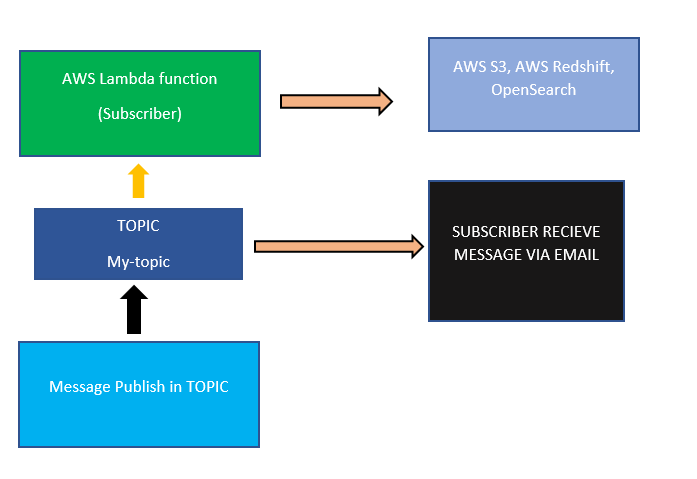
Amazon SNS and AWS Lambda are linked with each other and you can invoke Lambda functions with Amazon SNS notifications. When a message is published to an SNS topic that has a Lambda function subscribed to it, the Lambda function is invoked with the payload of the published message.
In this section we will create AWS SNS Topic in Account A and AWS Lambda function will be created in Account B and subscribed to an AWS SNS Topic. Lets start.
- In Account A, create the source Amazon SNS topic by using the below command.
aws sns create-topic --name sns-topic-for-lambda --profile accountA
- In Account B, create the execution role that gives your Lambda function permission to access AWS resources. To create an execution role Open the roles page in the IAM console. Add the Trusted entity as AWS Lambda, Permissions – AWSLambdaBasicExecutionRole and provide a name.
- Now in Account B create a node.js Lambda function. Add the following code and run the below command to create the AWS Lambda function using the AWSLambdaBasicExecutionRole .
console.log('Loading function');

exports.handler = function(event, context, callback) {
// console.log('Received event:', JSON.stringify(event, null, 4));

    var message = event.Records[0].Sns.Message;
    console.log('Message received from SNS:', message);
    callback(null, "Success");
};
aws lambda create-function --function-name Function-With-SNS \
--zip-file fileb://function.zip --handler index.handler --runtime nodejs12.x \
--role arn:aws:iam::<AccountB_ID>:role/lambda-sns-role  \
--timeout 60 --profile accountB
- Now In Account A, grant permission to Account B to subscribe to the topic by using below command.
aws sns add-permission --label lambda-access --aws-account-id <AccountB_ID> \
--topic-arn arn:aws:sns:us-east-1:<AccountA_ID>:sns-topic-for-lambda \
--action-name Subscribe ListSubscriptionsByTopic --profile accountA
- In Account B, add the Lambda permission to allow invocation from Amazon SNS
aws lambda add-permission --function-name Function-With-SNS \
--source-arn arn:aws:sns:us-east-1:<AccountA_ID>:sns-topic-for-lambda \
--statement-id function-with-sns --action "lambda:InvokeFunction" \
--principal sns.amazonaws.com --profile accountB
- In Account B, subscribe the Lambda function to the topic using the following command.
aws sns subscribe --protocol lambda \
--region us-east-1 \
--topic-arn arn:aws:sns:us-east-1:<AccountA_ID>:sns-topic-for-lambda \
--notification-endpoint arn:aws:lambda:us-east-1:<AccountB_ID>:function:Function-With-SNS \
--profile accountB
- You can also subscribe from the below steps.
- Sign in to the Amazon SNS console and in the navigation panel, choose Topics.
- In the Subscriptions section, choose Create subscription and provide topic ARN, For Protocol choose AWS Lambda and For Endpoint enter the ARN of a function and Create subscription.
- Finally Test the subscription in Account A by running below command.
aws sns publish --message file://message.txt --subject Test \
--topic-arn arn:aws:sns:us-east-1:<AccountA_ID>:sns-topic-for-lambda \
--profile accountA
Publishing an Amazon SNS message from Amazon VPC using AWS VPC Endpoint
To publish messages to your Amazon SNS topics from an Amazon VPC, create an interface VPC endpoint. You can create an interface VPC endpoint to connect to services powered by AWS PrivateLink, including many AWS services. Lets perform the following steps to publish an AWS SNS message from AWS VPC using VPC endpoint.
- You must have private subnet in AWS VPC.
- To use private DNS, you must enable DNS hostnames and DNS resolution for your VPC.
- You must have security groups with correct permissions or rules.
- To create the VPC Endpoint, Open the Amazon VPC console choose Endpoints and Create endpoint.
- In services choose AWS services for example AWS SNS.
- In VPC select the name of the VPC.
- Select Subnets, security groups, policy , tag and further create endpoint.
- Now, launch AWS EC2 instance with Amazon EC3 key pair.
- Create, SNS topic.
- An IAM role that allows the Amazon EC2 instance to use Amazon SNS
- Now, run the following command from the EC2 machine.
aws sns publish --region aws-region --topic-arn sns-topic-arn --message "Hello"
If you would like to create this stack using cloud formation, you should use the below code.
AWSTemplateFormatVersion: 2010-09-09
Description: CloudFormation Template for SNS VPC Endpoints Tutorial
Parameters:
  KeyName:
    Description: Name of an existing EC2 KeyPair to enable SSH access to the instance
    Type: 'AWS::EC2::KeyPair::KeyName'
    ConstraintDescription: must be the name of an existing EC2 KeyPair.
  SSHLocation:
    Description: The IP address range that can be used to SSH to the EC2 instance
    Type: String
    MinLength: '9'
    MaxLength: '18'
    Default: 0.0.0.0/0
    AllowedPattern: '(\d{1,3})\.(\d{1,3})\.(\d{1,3})\.(\d{1,3})/(\d{1,2})'
    ConstraintDescription: must be a valid IP CIDR range of the form x.x.x.x/x.
Mappings:
  RegionMap:
    us-east-1:
      AMI: ami-428aa838
    us-east-2:
      AMI: ami-710e2414
    us-west-1:
      AMI: ami-4a787a2a
    us-west-2:
      AMI: ami-7f43f307
    ap-northeast-1:
      AMI: ami-c2680fa4
    ap-northeast-2:
      AMI: ami-3e04a450
    ap-southeast-1:
      AMI: ami-4f89f533
    ap-southeast-2:
      AMI: ami-38708c5a
    ap-south-1:
      AMI: ami-3b2f7954
    ca-central-1:
      AMI: ami-7549cc11
    eu-central-1:
      AMI: ami-1b2bb774
    eu-west-1:
      AMI: ami-db1688a2
    eu-west-2:
      AMI: ami-6d263d09
    eu-west-3:
      AMI: ami-5ce55321
    sa-east-1:
      AMI: ami-f1337e9d
Resources:
  VPC:
    Type: 'AWS::EC2::VPC'
    Properties:
      CidrBlock: 10.0.0.0/16
      EnableDnsSupport: 'true'
      EnableDnsHostnames: 'true'
      Tags:
        - Key: Name
          Value: VPCE-Tutorial-VPC
  Subnet:
    Type: 'AWS::EC2::Subnet'
    Properties:
      VpcId: !Ref VPC
      CidrBlock: 10.0.0.0/24
      Tags:
        - Key: Name
          Value: VPCE-Tutorial-Subnet
  InternetGateway:
    Type: 'AWS::EC2::InternetGateway'
    Properties:
      Tags:
        - Key: Name
          Value: VPCE-Tutorial-InternetGateway
  VPCGatewayAttachment:
    Type: 'AWS::EC2::VPCGatewayAttachment'
    Properties:
      VpcId: !Ref VPC
      InternetGatewayId: !Ref InternetGateway
  RouteTable:
    Type: 'AWS::EC2::RouteTable'
    Properties:
      VpcId: !Ref VPC
      Tags:
        - Key: Name
          Value: VPCE-Tutorial-RouteTable
  SubnetRouteTableAssociation:
    Type: 'AWS::EC2::SubnetRouteTableAssociation'
    Properties:
      RouteTableId: !Ref RouteTable
      SubnetId: !Ref Subnet
  InternetGatewayRoute:
    Type: 'AWS::EC2::Route'
    Properties:
      RouteTableId: !Ref RouteTable
      GatewayId: !Ref InternetGateway
      DestinationCidrBlock: 0.0.0.0/0
  SecurityGroup:
    Type: 'AWS::EC2::SecurityGroup'
    Properties:
      GroupName: Tutorial Security Group
      GroupDescription: Security group for SNS VPC endpoint tutorial
      VpcId: !Ref VPC
      SecurityGroupIngress:
        - IpProtocol: '-1'
          CidrIp: 10.0.0.0/16
        - IpProtocol: tcp
          FromPort: '22'
          ToPort: '22'
          CidrIp: !Ref SSHLocation
      SecurityGroupEgress:
        - IpProtocol: '-1'
          CidrIp: 10.0.0.0/16
      Tags:
        - Key: Name
          Value: VPCE-Tutorial-SecurityGroup
  EC2Instance:
    Type: 'AWS::EC2::Instance'
    Properties:
      KeyName: !Ref KeyName
      InstanceType: t2.micro
      ImageId: !FindInMap
        - RegionMap
        - !Ref 'AWS::Region'
        - AMI
      NetworkInterfaces:
        - AssociatePublicIpAddress: 'true'
          DeviceIndex: '0'
          GroupSet:
            - !Ref SecurityGroup
          SubnetId: !Ref Subnet
      IamInstanceProfile: !Ref EC2InstanceProfile
      Tags:
        - Key: Name
          Value: VPCE-Tutorial-EC2Instance
  EC2InstanceProfile:
    Type: 'AWS::IAM::InstanceProfile'
    Properties:
      Roles:
        - !Ref EC2InstanceRole
      InstanceProfileName: EC2InstanceProfile
  EC2InstanceRole:
    Type: 'AWS::IAM::Role'
    Properties:
      RoleName: VPCE-Tutorial-EC2InstanceRole
      AssumeRolePolicyDocument:
        Version: 2012-10-17
        Statement:
          - Effect: Allow
            Principal:
              Service: ec2.amazonaws.com
            Action: 'sts:AssumeRole'
      ManagedPolicyArns:
        - 'arn:aws:iam::aws:policy/AmazonSNSFullAccess'
  LambdaExecutionRole:
    Type: 'AWS::IAM::Role'
    Properties:
      AssumeRolePolicyDocument:
        Version: 2012-10-17
        Statement:
        - Effect: Allow
          Principal:
            Service: lambda.amazonaws.com
          Action: 'sts:AssumeRole'
      ManagedPolicyArns:
        - 'arn:aws:iam::aws:policy/service-role/AWSLambdaBasicExecutionRole'
  LambdaFunction1:
    Type: 'AWS::Lambda::Function'
    Properties:
      Code:
        ZipFile: |
          from __future__ import print_function
          print('Loading function')
          def lambda_handler(event, context):
            message = event['Records'][0]['Sns']['Message']
            print("From SNS: " + message)
            return message
      Description: SNS VPC endpoint tutorial lambda function 1
      FunctionName: VPCE-Tutorial-Lambda-1
      Handler: index.lambda_handler
      Role: !GetAtt
        - LambdaExecutionRole
        - Arn
      Runtime: python3.9
      Timeout: '3'
  LambdaPermission1:
    Type: 'AWS::Lambda::Permission'
    Properties:
      Action: 'lambda:InvokeFunction'
      FunctionName: !Ref LambdaFunction1
      Principal: sns.amazonaws.com
      SourceArn: !Ref SNSTopic
  LambdaLogGroup1:
    Type: 'AWS::Logs::LogGroup'
    Properties:
      LogGroupName: !Sub "/aws/lambda/${LambdaFunction1}"
      RetentionInDays: '7'
  LambdaFunction2:
    Type: 'AWS::Lambda::Function'
    Properties:
      Code:
        ZipFile: |
          from __future__ import print_function
          print('Loading function')
          def lambda_handler(event, context):
            message = event['Records'][0]['Sns']['Message']
            print("From SNS: " + message)
            return message
      Description: SNS VPC endpoint tutorial lambda function 2
      FunctionName: VPCE-Tutorial-Lambda-2
      Handler: index.lambda_handler
      Role: !GetAtt
        - LambdaExecutionRole
        - Arn
      Runtime: python3.9
      Timeout: '3'
  LambdaPermission2:
    Type: 'AWS::Lambda::Permission'
    Properties:
      Action: 'lambda:InvokeFunction'
      FunctionName: !Ref LambdaFunction2
      Principal: sns.amazonaws.com
      SourceArn: !Ref SNSTopic
  LambdaLogGroup2:
    Type: 'AWS::Logs::LogGroup'
    Properties:
      LogGroupName: !Sub "/aws/lambda/${LambdaFunction2}"
      RetentionInDays: '7'
  SNSTopic:
    Type: 'AWS::SNS::Topic'
    Properties:
      DisplayName: VPCE-Tutorial-Topic
      TopicName: VPCE-Tutorial-Topic
      Subscription:
        - Endpoint: !GetAtt
            - LambdaFunction1
            - Arn
          Protocol: lambda
        - Endpoint: !GetAtt
            - LambdaFunction2
            - Arn
          Protocol: lambda
SNS IAM policy use cases.
Grant AWS account access to a topic
The user with AWS account 1111-2222-3333 can publish messages to the topic.
{
  "Statement": [{
    "Sid": "grant-1234-publish",
    "Effect": "Allow",
    "Principal": {
      "AWS": "111122223333"
    },
    "Action": ["sns:Publish"],
    "Resource": "arn:aws:sns:us-east-2:444455556666:MyTopic"
  }]
}
Limit AWS SNS subscriptions to HTTPS Endpoints
{
  "Statement": [{
    "Sid": "limit subscription to HTTPS ",
    "Effect": "Allow",
    "Principal": {
      "AWS": "111122223333"
    },
    "Action": ["sns:subscribe"],
    "Resource": "arn:aws:sns:us-east-2:444455556666:MyTopic"
    "Condition": {
      "StringEquals": {
        "sns:Protocol": "https"
      }
    }
  }]
}
Publish messages to an Amazon SQS queue
In this use case, you want to publish messages from your topic to your Amazon SQS queue
{
  "Statement": [{
    "Sid": "Publish messages to an Amazon SQS queue ",
    "Effect": "Allow",
    "Principal": {
      "AWS": "sns.amazonaws.com"
    },
    "Action": ["sqs:SendMessage"],
    "Resource": "arn:aws:sqs:us-east-2:444455556666:MyQueue",
    "Condition": {
        "ArnEquals": {
          "aws:SourceArn": "arn:aws:sns:us-east-2:444455556666:MyTopic"
      }
    }
  }]
}
Allow AWS S3 event notifications to publish to a topic
{
  "Statement": [{
    "Effect": "Allow",
     "Principal": {
      "Service": "s3.amazonaws.com"
    },
    "Action": "sns:Publish",
    "Resource": "arn:aws:sns:us-east-2:111122223333:MyTopic",
    "Condition": {
      "StringEquals": {
        "AWS:SourceAccount": "444455556666"
      }
    }
  }]
}
Conclusion
In this tutorial we learnt everything we should know about AWS SNS service which is very critical for monitoring, sending notifications etc. We also learnt how it can be integrated with various AWS Services such as AWS Lambda, AWS Kinesis Firehose and AWS S3 etc.
 Automate Infra