
AWS Well-Architected Tool (AWS WA Tool) is a service in the cloud that provides a consistent process for measuring your architecture using AWS best practices. AWS WA Tool helps you throughout the product lifecycle by:
- Assisting with documenting the decisions that you make
- Providing recommendations for improving your workload based on best practices
- Guiding you in making your workloads more reliable, secure, efficient, and cost-effective
Integrations with AWS Trusted Advisor and AWS Service Catalog AppRegistry helps you more easily discover the information needed to answer Well-Architected review questions.
In AWS WA Tool and the AWS Well-Architected Framework:
- A workload identifies a set of components that deliver business value. The workload is usually the level of detail that business and technology leaders communicate about. Examples of workloads include marketing websites, ecommerce websites, the backend for a mobile app, and analytic platforms. Workloads vary in their level of architectural complexity. They can be simple, such as a static website, or complex, such as microservices architectures with multiple data stores and many components.
- Milestones mark key changes in your architecture as it evolves throughout the product lifecycle — design, testing, go live, and production.
- Lenses provide a way for you to consistently measure your architectures against best practices and identify areas for improvement.
- High risk issues (HRIs) are architectural and operational choices that AWS has found might result in significant negative impact to a business. These HRIs might affect organizational operations, assets, and individuals.
- Medium risk issues (MRIs) are architectural and operational choices that AWS has found might negatively impact business, but to a lesser extent than HRIs.
Providing users, groups, or roles access to AWS WA Tool
In this step, you grant access to AWS WA Tool.
- To provide access, add permissions to your users, groups, or roles:
- Users and groups in AWS IAM Identity Center: Create a permission set.
- Users managed in IAM through an identity provider: Create a role for identity federation.
- IAM users or create a role that your user can assume.
- To grant full control, apply the WellArchitectedConsoleFullAccess managed policy to the permission set or role. Full access allows the principal to perform all actions in AWS WA Tool. This access is required to define workloads, delete workloads, view workloads, update workloads, share workloads, create custom lenses, and share custom lenses.
- To grant read-only access, apply the WellArchitectedConsoleReadOnlyAccess managed policy to the permission set or role. Principals with this role can only view resources.
To turn on support for other services that AWS WA Tool can interact with, navigate to Settings.
- To gather information from AWS Organizations, turn on Activate AWS Organizations support.
- Turn on Activate Discovery support to gather information from other AWS services and resources.
- Select View role permissions to view the service-linked role permissions or trust relationship policies.
- Select Save settings.
Workloads
A workload is a collection of resources and code that delivers business value, such as a customer-facing application or a backend process.
A workload might consist of a subset of resources in a single AWS account or be a collection of multiple resources spanning multiple AWS accounts. A small business might have only a few workloads while a large enterprise might have thousands.
Lenses
Lenses provide a way for you to consistently measure your architectures against best practices and identify areas for improvement. The AWS Well-Architected Framework Lens is automatically applied when a workload is defined.
There are two kinds of lenses that can be applied to your workloads: Lens Catalog lenses and Custom lenses.
- Lens Catalog: Official lenses that are created and maintained by AWS. The Lens Catalog is available to all users and does not require any additional installation to use.
- Custom lenses: User-defined lenses that are not AWS official content. You can create custom lenses with your own pillars, questions, best practices, and improvement plans, as well as share custom lenses with other AWS accounts.
To add a lens to a workload
- Sign in to the AWS Management Console and open the AWS Well-Architected Tool console.
- In the left navigation pane, choose Workloads.
- Select the desired workload and choose View details.
- Select the lens to add choose Save.Lenses can be selected from Custom lenses, Lens Catalog, or both.
Up to 20 lenses can be added to a workload.
Review templates
You can create review templates in AWS WA Tool that contain pre-filled answers for Well-Architected Framework and custom lens best practice questions.
Well-Architected review templates reduce the need to manually fill in the same answers for best practices that are common across multiple workloads when performing a Well-Architected review, and they help drive consistency and standardization of best practices across teams and workloads.
To create a review template
- Select Review templates in the left navigation pane.
- Choose Create template.
- On the Specify template details page, provide a Name and Description for your review template.
- (Optional) In the Template notes and Tags sections, add any template notes or tags you want to associate with the review template. Any notes added are applied to all workloads that use the review template, whereas tags are specific to the review template.
- Choose Next.
- On the Apply lenses page, select the lenses that you want to apply to the review template. The maximum number of lenses that can be applied is 20.Lenses can be selected from Custom lenses, Lens Catalog, or both.
- Choose Create template.
Defining a workload
The next step is to define a workload.
- Sign in to the AWS Management Console and open the AWS Well-Architected Tool console.
- If this is your first time using AWS WA Tool, you see a page that introduces you to the features of the service. In the Define a workload section, choose Define workload.
- In the Name box, enter a name for your workload.
- In the Description box, enter a description of the workload. The description must be between 3 and 250 characters.
- In the Review owner box, enter the name, email address, or identifier for the primary group or individual that owns the workload review process.
- In the Environment box, choose the environment for your workload:
- Production – Workload runs in a production environment.
- Pre-production – Workload runs in a pre-production environment.
- In the Regions section, choose the Regions for your workload
- Choose Next. If a required box is blank or if a specified value is not valid, you must correct the issue before you can continue.
- Choose the lenses that apply to this workload. Up to 20 lenses can be added to a workload.
- Choose Define workload. If a required box is blank or if a specified value is not valid, you must correct the issue before your workload is defined.
Document the workload state
To document the state of the workload, you are presented with questions for the selected lens that span the pillars of the AWS Well-Architected Framework: operational excellence, security, reliability, performance efficiency, cost optimization, and sustainability.
- Choose Next to proceed to the next question. You can use the left panel to navigate to a different question in the same pillar or to a question in a different pillar.
- If you choose Question does not apply to this workload or None of these, AWS recommends that you include the reason in the Notes box.
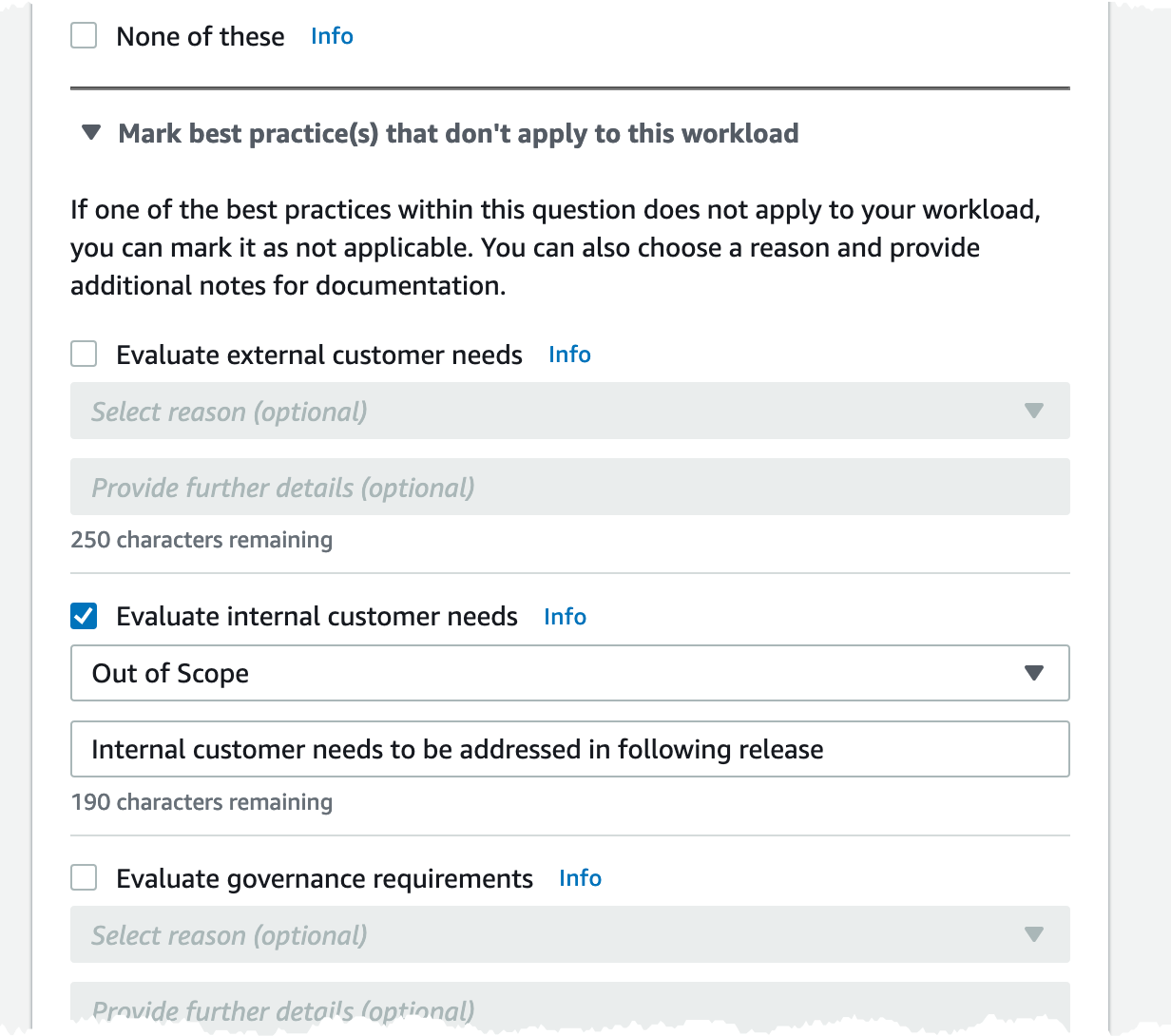 NoteYou can pause this process at any time by choosing Save and exit. To resume later, open the AWS WA Tool console and choose Workloads in the left navigation pane.
 - Select the name of the workload to open the workload details page.
- Choose Continue reviewing and then navigate to where you left off.
- After you complete all of the questions, an overview page for the workload appears. You can review these details now or navigate to them later by choosing Workloads in the left navigation pane and selecting the workload name.
Review the improvement plan
Based on the best practices selected, AWS WA Tool identifies areas of high and medium risk as measured against the AWS Well-Architected Framework Lens.
To review the improvement plan:
- Choose AWS Well-Architected Framework from the Lenses section of the Overview page.
- Then choose Improvement plan.
Make improvements and measure progress
From the Improvement items section:
- Choose the pertinent question and update the selected best practices to reflect the changes. Notes are added to record the improvements.
- Then choose Save and exit to update the state of the workload.
- After making changes, you can return to the Improvement plan and see the effect those changes had on the workload. In this example, those actions have improved the risk profile — reducing the number of high risk issues from three to only one.
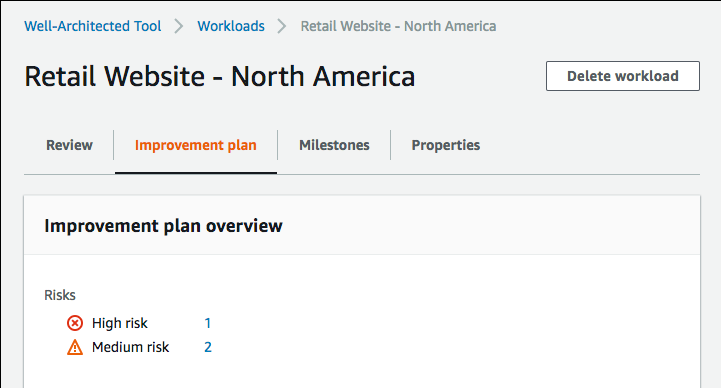
You can save a milestone at this point, and then go to Milestones to see how the workload has improved.
what is tomcat.service and where can i get this
Thanks , this is really helpful
[…] How to Launch AWS Elastic beanstalk using Terraform (automateinfra.com) […]
Terraform – created the resources but they are not visible / exist in the console. why and how to fix…


 Automate Infra
Pertaining to Windows Boot Loader, some information is not correct; “C:\boot.ini contains the configuration files of NTLDR” ————————————————————– In windows…